Don’t start cleansing data yet!

Standard

Data is a fickle beast.

One minute, you have amazing dashboards and reports… your finance nerds are seeing into the future with clarity a weather man can only wish to have…the next minute, you have gremlins everywhere causing chaos in the most basic of processes and you can only give accurate forecasts for five minutes in the past.

Don't feed data analysts after midnight!

All your data are belong to us!

I suspect this has been happening since mankind developed the first CRM, which was on Oracle Clay Tablets.

Oracle V1

You should see the servers needed for this!

Having been on many data cleansing projects in the past, with many more in my future, I decided to sketch out some ideas I have picked up along the way. Don’t worry, I will go back to my techie salesforce nerd stuff next week!

“It is a never ending story”

Cleansing data is not a project with a start and an end, it is a process that needs to be ongoing. If you have data coming in, you will have data that needs to be cleaned. Build it into your budget, chant the mantra, do whatever it takes, but embrace the fact that as long as you are around any CRM you will be doing data clean up.

“Business Involvement”

Even though dirty data and data cleansing will never go away, it will become a smaller task once you get your users sold on the idea of clean data. At the very least, you need your users to care about the system at the best they will become advocates of clean data. Boeing used to have a program called “FOD FREE”. FOD is “Foreign Object Damage” and it prompted their employees to be active in keeping the work environment clean. It was a huge success through marketing and  engagement, AKA, Business Involvement.

“Clean with a Purpose”

There are two methods to getting business involvement in data cleansing, carrot and stick. Personally, I prefer the carrot approach. Know why you are doing it, and be able to explain that to the business. Tell them in “What’s In It For Me” (WIFM) terminology why their data is changing and what outcomes they can expect. Have them involved in any process modifications or validation rule building. If you get them at least interested in clean data the process will be much less contentious.

“Know your Data”

Seriously, run some DANG reports. Know the numbers because someone will ask. Know the up and downstream impacts of dirty data. Know use cases. Have a really nice power point set explaining this things, and gear the presentations to different user levels. If you do not  know your data, how can you clean it???

On a side note, I swear by “You suck at powerpoint” as a great learning aid around presentations!

“Classify your Data”

Classifying data is just chunking up your data into sound bite groupings. The key here is “Sound Bite”. You can say something awesome like “Customers with an account that has at least 3 contacts that all have been sent an email in the past three years”, but after the first couple words, all anyone will hear is “blah blah blah”. Instead, have sound bite ready classifications. Thinking in “Sound Bite” terms will also help with reporting and formula writing, covered next week!

Here are some suggestions for accounts:

Primary = Customer, Non Customer

Secondary = Active (Open Pipeline), Non Active (No Pipeline)

Tertiary = Marketable (Contacts with Email), Non Marketable (Contacts without Email)

It’s looking a lot like Christmas (Sigh)

What really gets me excited about classifications is that it helps you NOT boil the ocean. It is not unrealistic to have hundreds of thousands of account records, and if you were to set about trying to clean them ALL, you would be wasting time and money on records that really are the equivalent to that fruitcake you got last year. It is just taking up space, but you don’t want to throw it out because someday you might have a reason to use (re-gift) it.
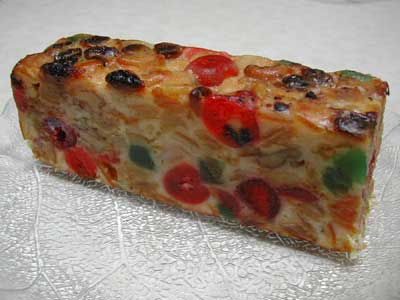
fruitcake

Yes, I did just compare your data to an old fruitcake

The above tips are not the end all be all, just things I have picked up along my career. But, if you are rolling into the discussion on data clean up just keeping these in mind you will be at a point where you have the business engaged in the ongoing process of data cleansing on a known set of data that involve a set of agreed upon classifications…or, in other words, you will be setup for success!

Oh, and now that this stuff is out of the way, we can get back to more techie stuff next week!


Andrew

Add followers with Flows

Standard

Chatter (in my opinion) is one of the really neat features of salesforce, allowing users to follow records that might be important to them is just one of the “Killer Apps” of this functionality. Ironically enough, being that this is a social network, is the request for that one can just add followers automagically if  “X” condition is met. There are even a couple apps on the appexchange for that.

Automated Networking, Jumbo Shrimp, Stop / Keep Moving, OxyMoron

Automated Networking, Jumbo Shrimp, Stop / Keep Moving, OxyMoron

To me, this takes a bit of the social out of “social networking”, so I am going to sketch out a solution that is a bit more personable but still makes it easy to add a follower

In a nutshell, it goes a little something like this:

1)      Within a record, the current user feels that another user (or themselves) should be on the follow list

2)      The current user clicks a button. In this case, I have called it “Pied Piper”

3)      A flow is launched that does the following:

1. Looks up a user based information given

2.Attaches that user to the current record as a follower

As usual, I am just sketching going to provide the foundation for this functionality. The magic here is that you can flows to do some neat stuff like attaching multiple users, adding comments, tags, etc. You don’t have to add this stuff in, but I would encourage playing around with it to see what you can / can’t do. Also, a quick Caveat. I found that a user will have to have “Modify All” permissions on the object you are pushing this out to. 

That aside, now we get to the Nuts & Bolts of the matter. I have got a couple of components that I am going to be using:

  1. A visual flow
  2. A custom button driven by a URL
  3. A nice cup of Coffee (Optional, or not)

This flow function sounds exciting and awesome (Follower Updates, Magic!), but is really basic. There are four components to this flow, Entry screen, Record lookup, Record Create and the confirmation screen (optional). There is however a critical variable, varAccountID. This is the variable that houses the ID that is passed over via URL. Just be aware when you are building this out!

The Components

Salesforce Flows, How awesome

On the entry screen, there is a text box for entry of a person’s name. The text box value is passed to the Record Lookup. One of the easiest improvements would be making this multi search (name, ID, email), just something to keep in mind.

Search Box

The flow does a look up on name, and returns the userID.

2014-05-13 13_15_27-Flow Designer_ public_FlowFromFlow


Next up is the Record Create on the object Entity Subscription. In this case, the parentID is the accountID, but it can be anything. SubscriberID is just the UserId pulled above.

2014-05-13 12_49_55-Flow Designer_ public_FlowFromFlow

Once the record is created, there is a confirmation screen. This is an optional step, but something I like to do.

Confirmation

Now that I have a flow in place, I create a button (Pied Piper) on the account layout.

Pied Piper Button

1 story point was spent on the clever name

This button is nothing fancy, just running a hyperlink that will open up the flow AND push over the accountID of the record the user is currently in. I did add the retURL on the end so that instead of a loop, the user is returned to the accounts page.

Behind the Curtain

Just to reiterate, this is the foundational work. You could implement this into production and have something that works but it isn’t going to be awesome. Here are the required proof shots!


As always, questions or comments, hit me up!


andrew

What (approximately) 48 hours with Apex has taught me

Standard

Friday afternoon, around 2:00 I got a message telling me to check out SFDC99.com. At first, I was skeptical, here is yet another blog that is going to teach me Apex / java/ html etc…I had read it all before and have failed just about every time. Part of it was how the knowledge was presented, part of it was me saying “It is 20XX, why am I still having to write lines of code” and part of it was that I can do a BUNCH of cool stuff already with the goodies in Salesforce, what will learning Apex do for me.

Apparently, not my future.

Where we are going, we don’t need code

This blog was different though, the tutorials were written in a conversational and logical manner that made sense and also didn’t come across as a developer talking to a kindergarten class.It also dawned on me…I was doing this stuff already. Sure, it might be through flows or crazy clever formulas and workflows, but the logic was there. My bias was pretty much erased completely once I saw this question:

1. If you can solve a business need using either a workflow or a trigger, which should you use?

Always use a point-and-click solution (workflow) when possible!

  • It’s easier for your team to create and maintain workflows
  • Workflows are easier to find when debugging unexpected behavior in your org
  • Workflows never break!
  • You don’t have to write test classes
Pretty much every developer I have ever worked with

In internet time, this meme is so old it farts dust

The reason this question really hit me was because I have ran into MANY developers that are code first, ask questions (and write documentation, test, get feedback on, deploy correctly) later.

Having seen and supported the aftermath of this type of developement, I really took a to the whole #ClicksNotCode and #ButtonClickAdmin philosophy to heart. Seeing a developer actually answer this question like I would was like a golden ticket.

Golden Ticket of Apex

First time your class runs with 100% coverage (even though trigger is 5 lines)

It told me I could still believe in all the good stuff that makes a system like Salesforce.com great WHILE learning the dark side.

So, it has been approximately 48 hours since I started doing this thing, and here is what I have learned:

1)      Just because you know code doesn’t mean you know salesforce.

2)      APEX is way more intuitive than whatever code you might have tried to stumble through last time.

3)      I am really thankful for my time supporting traditional CRM systems (Cough, Siebel, Cough) and having to muddle through gnarly SQL statements.

4)      Having to have 75% code coverage is tough, but if you think about what you are trying to do with your trigger and then build out from there, you will do good.

5)      Try and think how you would write a trigger to handle every transactions like getting coffee.

Next steps? Well, I just got my Head First Java book and have been working through that. Honestly, so far installing the JAVA SDK seems to be the hardest part (and I have installed Linux!), but that really isn’t a surprise since it is an Oracle Product.

Clicks not Code Larry, Clicks not Code

The new westcoast beef

I am also going to keep plugging away on the SFDC99.com tutorials. I have went through Chapter4 and am going to spend some time here getting a better grip on the basics before I move along. I am also going to keep “doing what I do” in terms of new functionality in SFDC. I love all the fun stuff like flows and workflows, but much like a padawan with a new lightsaber, I am going to try and use it as much as I can.

Nuts! My lightsaber test class only ran 45% of the lines!

I missed class picture day


Andrew

More information about my #Salesforce1Selfie

Standard

Salesforce.com is running a twitter contest asking for selfies of Salesforce1 Apps. The majority of posts Salesforce is receiving are user-centric and I think that is great, but just not the way I am going (for now). I built an app for the Administrator. More specifically, I built one for myself. The reason is pretty simple, during my day I get to do a bunch of different things and most are pretty fun. However, setting up new user is not on that list. This is because there are two typical scenarios:

1)      “Hi SFDC Team, please set me up in Salesforce with permissions like my colleague”

2)      “Hi SFDC Team, please set me up in Salesforce” Both of these scenarios can get messy fast…and by messy I mean way too many clicks. I did a quick sketch in Visio and found that at a very high level, there are 7 steps involved in the first scenario. That is way too much (In my opinion) for me to do a couple times a week.

TOO MANY STEPS

More fun than…checks list…not much

Therefore, I decided to make something that will reduce the number of steps AND let me easily share out the process AND can be done via the mobile AND be my entry in the #Salesforce1Selfie contest that hopefully will ensure I can stay somewhere awesome during Dreamforce 14.

2014-04-21 21_09_33-Fitzgerald Hotel - Google Maps

The Fitzgerald…not a bad place, but if I win I won’t be staying there.

There are three basic ingredients to my selfie, which I will go into more detail on in three carriage returns: 1)      Flow

2)      VisualForce Page (Don’t Panic!)

3)      Navigation

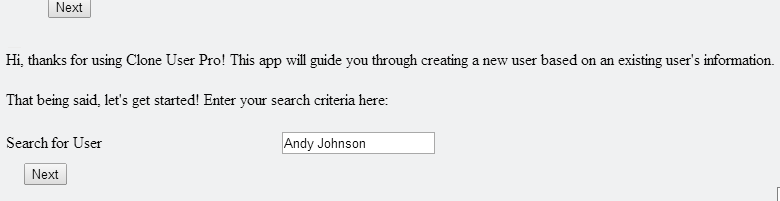
The flow starts with the basics “Input, Query, and Output” structure. My input is the name / email / id of the clone source. You can search three different ways from just one text box (More on that here, “One (flow) field to rule them all”). The query returns all the information you need to create the user record, which I had found previously while working creating users with the Excel Connector.

Pulled from Clone Source

Set it and Forget it!

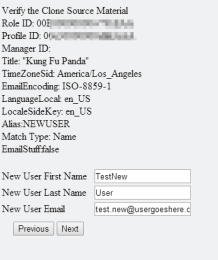
I display that information on the confirm screen, which is where the cloned user email / name is entered. The finish button creates the user.

Create User Fields

And this is why I automate this stuff.

There is one interesting thing I need to call out here. If you were to create the user through the regular method, alias is autogenerated. Not a big deal except that Alias is limited to only 8 digits. I just default it to “NewUser” and will direct the new user to change it. You could do something fancy with workflows if you want. At this point, I have a flow that is crazy handy for use just with in the UI. I do plan on modifying this before I push to production so that the clone user search screen is skipped when launched via custom link on the user page. But what about mobile?

But will it load salesforce 1

“Where is the salesforce1 App?”

I had decided that I wanted to use flows as an app rather than an action. The reasoning is that while in the webUI I am more than likely going to be launching the flow from a user I have found, but if I am accessing via salesforce1, I will be providing the search criteria myself. Therefore, I need to make an app. To use a flow with in an app or even a page is going to require just a little tiny bit of code. It is such a small amount, I don’t even have to give up my hashtag #ClicksNotCode for this blog posting. There is some official documentation out there that will talk about embedding flows within a visual force page. It is really good stuff and I highly recommend you reading it. I have used both the official method and also just used an iframe. Either way seems to work out just fine. You need to make sure to check the box “Available for Salesforce mobile apps”.

iframe visual force

Don’t take away my Clicks Not Code Card!

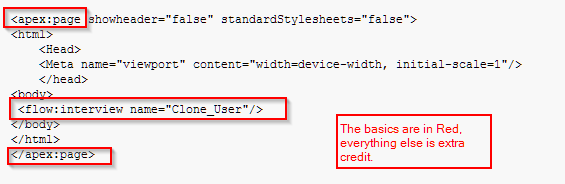
One thing you might notice is that your performance on the mobile device is not the same as in the simulator. I believe this is because the basic iframe / interview code given is making the device work hard to format the flow page. I consulted with Google and found a write up on panya.com that had a couple things I wanted to try. I was able to see a HUGE improvement in load times by putting in a few extra lines of code. Another tip is to just save this code somewhere and use it as your template.

FASTER!

I am giving it all she got’s captn!

“<apex:page showheader=”false” standardStylesheets=”false”> <html> <Head> <Meta name=”viewport” content=”width=device-width, initial-scale=1″/> </head> <body> <flow:interview name=”Clone_User”/> </body> </html> </apex:page>“ Now that I have my flow and my tab I am nearly ready to roll. I just need to add it to the Salesforce1 navigation. You can find the nitty – gritty here, but it is just as easy as going to Mobile Administration and Mobile Navigation. NOTE! If you do not see your VisualForce tab here, got back and verify that you checked the box “Available for Salesforce Mobile Apps”. Also, I have noticed along with some other caveats, visual force pages that were created before salesforce1 came out are only checked with the Salesforce Touch option. It looks like they cannot be modified to run with in Salesforce1. The punch list is complete at this point. To verify you can use the Salesforce1 simulator (<<Org>>.salesforce.com/one/one.app) or you can also see the results on your mobile device pretty easily by just logging in to your sandbox environment.

flow GO

Step One

Confim screen

Step 2

I really like how this turned out. In a very small amount of time, I was able to: 1)      reduce the amount of clicks in my current process by about 80% 2)      Create a nice URL based process 3)      Create a mobile app for admin use “on the go”   As always, let me know if you have any questions, comments, concerns or interesting ideas you would like me to research!   andrew

Making a Dynamic Choice That Much Better

Standard

Let’s say that you are writing a flow and at one point you are going to prompt your user for some data that will then be used to populate a dynamic choice field.

Tell me hot shot, how do you handle just one single record?Do you make your user select one and then click through, or is there a better way?

Image “Can I choose not to do Matrix 2 and 3?”

Well, the good news is, you can make a smarter dynamic choice flow. By using some logic and a couple queries, you can choose to display the dynamic choice or bypass it. The reason we can do this is because instead of checking to see how many records are returned, we are just going to check to see if there is more than one. 

The example I am going to use takes a user input of “Last Name” and will check to see if there is ONE or ONE+ records and then determines if the user should see the dynamic choice page or a generic page displayed to the user.

Image


1)      Query1 is based on the user input. ID of the first record is passed to a variable (VarID1)

Image

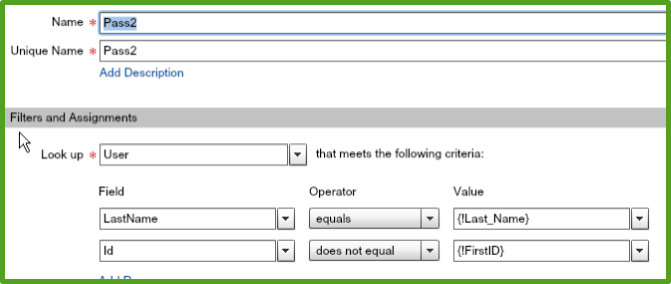
2)      Query2 is based on the user input AND the ID cannot equal VARID1
Image

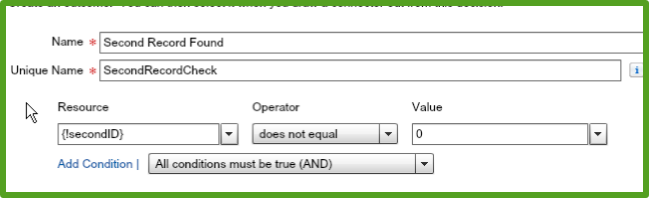
3)      The results of Query2 is passed to a variable (VarID2). This variable has a default value of zero

4)      Decision point evaluates VarID2 and if the variable DOES NOT equal zero, the dynamic choice screen is presented. Default outcome (in this case) is just a display screen.

Image

5)      Take the rest of the day off (just kidding)

I wish there was more to this, but it really is just a nice piece of logic and the fact that your user doesn’t have a click gate if there is just one record returned will probably go unnoticed, but you will know the truth!


EDIT! This blog post really covered this on a high level. If you want a blow by blow account, head over to my buddy Rakesh’s blog…


Fun with Salesforce Flows – Parsing Multi Select Picklist fields

Standard

Fun with Flows – Parsing Data

I recently ran into a challenge while making / scripting / conjuring a fairly complex flow. I needed to get data out of a Multi Select Picklist (MSP) field for use later on in my flow. The google hive brain did not help at all…literally, I couldn’t find anything when googling on terms such as “salesforce visual flow parse”. Once I started googling ““salesforce parse” I got lots of results…for apex solutions.

So once again, I find myself faced with the following:

1)      Check my “Clicks Not Code” membership at the door and start down the apex path?

2)      Write some crazy formula field to do this work and then pass data back and forth?

3)      Put on my thinking cap and figure out a way to get this done with in a flow?

And as usual, I opt for #3.

First things first, I had to figure out what I had to work with. To do this, I extracted some data from my MSP fields and found that MSP’s store their data in a very logical way, ((“Value””SemiColon”)). What this means to me is that when I run the query on the object and push MSP field data to a variable, it is going to ONLY bring over the data that has been selected and it was going to show up as a text string. I had a hunch that the MSP would act this, but you know what they say, “Trust but verify”. This behavior also reinforced why I wanted to parse the data. Carrying around a full string like “Value 1; Value 2; Value 3” really reduces what you can do within flows.

Now that I know what I am working with, I can go about getting the data into the format I want. The quick synopsis is that I am going to:

1)      Create variable for the MSP Values

2)      Create decisions for each MSP Value

3)      String the decisions together

For this example, I have the MSP field “McDuck” that contains the values Huey, Louie, Dewey, Donald, Daisey and Scrooge. I want to separate out any selection into their own variable for use in other parts of my flow. Here are the steps I am going to run through (Visual in the PDF).

1)      Query “GetData” passes the values in the field “McDuck” to “varGotMcDuckData”

Image

2)      The data in “varGotMcDuckData” is then ran through a number of decision setps.

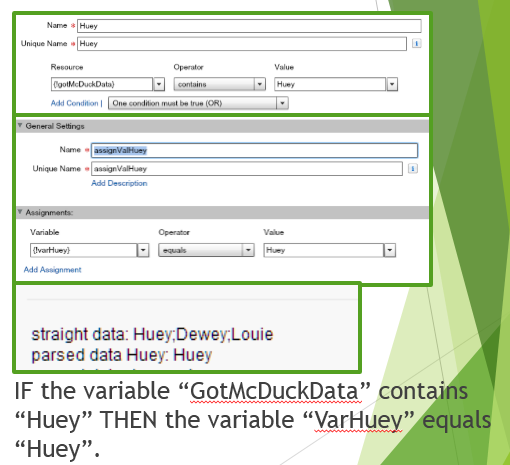
     ParseHuey takes a look at “varGotMcDuckData” and if the data in that variable contains “Huey”, then populates “VarHuey” with “Huey”

Image

      ParseDewey takes a look at “varGotMcDuckData” and if the data in that variable contains “Dewey”, then populates “VarDewey” with “Dewey”

Image

3) Rinse, wash, repeat as needed!

There are a couple things important to keep in mind when doing this. The first is that these can get really big really quick. Don’t be afraid to use a subflow to do the dirty work (Future Topic!). Also keep in mind that once data gets passed into a variable, data is retained there until the flow stops. If you are going to have a multi-step process you need to build in a clean step where the variables are scrubbed of data.

Even though this is a fairly elaborate process, it really does go by quickly. The added benefit is that flows are recyclable, so if I ever had a need to parse out the McDucks in a flow anywhere, I could reference my parsing flows over and over and over again.


Andrew

using a formula field to generate random numbers in Salesforce

Standard

In the course of getting “Project X” on the road to AMAZING I had to figure out how to get a random number out of salesforce. Since I am not a coder (Clicks not Code FTW!) I went through the formula documentation on success.salesforce and could not find anything like the excel function “random”. The google machine had suggestions, but they were all code driven. This is an interesting post as well. (http://blogs.developerforce.com/developer-relations/2013/07/selecting-random-numbers-and-records-on-the-force-com-platform-part-1.html)

So, what’s a poor admin to do? Well, if option A doesn’t work and option B is not going to work, this admin gets out his thinking cap (Seattle Seahawks throwback, btw) and gets to work.

First, I had to think about what I was trying to do. Am I really trying to make a random number? Do random numbers exist at all? The truth is, I can give you random numbers all day long and more than likely, you will find (or think you have found) a pattern. Humans are exceptional at doing this, and it has been theorized this helps with the whole Fight or Flight instinct (Is that the bushes or is there really a tiger there?).The lesson here is that as long as the user thinks it is “random” it can be called random.

Thus, properly aligned on this concept, I go off on my merry and random way and cooked up a solution.

Now, before I go into pure SFDC formula awesomeness mode, I want to call out that this is probably my 50th iteration (maybe slight exaggeration) of this functionality. BUT, I want to also call out that Salesforce is probably the best platform I know of for this type of work. Quite literally, I would have the tab view up on the screen and in a new chrome tab the formula field for constant tweek / refresh. So, back to the awesomeness.

I decided that I will need two things to get my random number:

1)      A pool of numbers

2)      A “dice” function

To generate the pool of numbers, I decided to use the NOW() function along with the square root function. The NOW() function gives me an ever changing value and the square root function gives me a way to expand on that changing value. At first, I tried using just the minute function to get my pool, but ran into issues because the numbers were quite large enough. That is not to say it wouldn’t have worked, but it just didn’t make me happy. Then, around PI day (3/14) I had an inspiration! I remembered that there were certain sequential dates that only occur once in a millennia like “11/12/13”. I already had a really REALLY good seed, the date itself. This is because NOW() returns Month/ Day/ Year Hour / Minutes / AM PM. That might be a bunch of text, but if you break it down a bit more, you will see where I am headed:

NOW() = 3/19/2014 9:25 AM = 3192014925 = 31920141625

That last value might look a little funny and that is because it is. I noticed that when I ran a formula to derive hour from now <(left(right(text(now()),9),2)))> the return result was actually not matching with what I saw. Turns out, the hour value was being formatted into 24 hour UTC.

Deep Breath! With all this said, what I have is this great formula that returns a number that WILL NEVER HAPPEN AGAIN (Kerplew, Mind Blown and it is only Thursday) and can now work my random magic on it, and by magic, I mean the square root function.

The reason I use this function is because, well, it generates a gnarly set of digits. According to the Wikipedia page, “In mathematics, a square root of a number a is a number y such that y2 = a, in other words, a number y whose square (the result of multiplying the number by itself, or y × y) is a.[1] For example, 4 and −4 are square roots of 16 because42 = (−4)2 = 16.”, in other words, for every number, this is another number that when multiplied against itself will return the first number.

Thus, I get the following number formula with 9 digits after the decimal:

sqrt(

(value(

      (left(right(text(now()),6),2))&     

      text(DAY(DATEVALUE(now())))&

      text(Month(DATEVALUE(now())))&

      text(Year(DATEVALUE(now())))&

      (left(right(text(now()),9),2)))

)/100

)

There are a couple things I need to call out:

1)      I put the “/100” in there because the returned number was so large and the differences (minutes) so minute (ha) that the square root function was not returning really good results. Once I threw that “/100” in there, I started to get much more amazing data.

2)      The order of operation starts with the minute function. This is to keep things more random. Basically, if you started with the Date values, the leading digits would be the same for 24 hours. This way, they are refreshed every minute.

Now that you have a pool of numbers, you would need to generate your “dice” criteria.

The dice is what selects from the pool the actual number. In excel, this is similar to the “RANDBETWEEN” function. I put together a quick dice criteria in excel so that I could demonstrate the randomness. It uses a combination of the length of the user’s first name & the numerical position of the first letter of the first name. What this means is that ANDREW = 6 digits and A = 1, so my “dice” number is 6-1. IF my first name was BART, then the “dice” formula would be 3 (BART = 5 digits and B = 2). I used this “dice” formula on my pool results, and for it being a thrown together criteria, I did see some very nice and random results. Unfortunately, chatter posts are not very nice with formatting that data, so you would need to look at the attached docs!

And thus, with this knowledge, you will be on your way to generating your own take on this, which is what will truly make your number random! Now, was this all just for fun? Nope! One possible application for this could be for the assignment of incoming records like leads or cases where you might not want a round robin or first in / first out rule setup.


Thanks for playing along! If you like this, be sure and share. If you have questions, well, let me know!

Using a Salesforce formula to determine if a date is current or previous fiscal year

Standard

I wrote out this formula because there was a need for our customers to be able to quickly see if a date was in or out of a current fiscal year. The key component of this formula is to have a way of thinking that doesn’t think of a year as January 1 to December 31st but rather from “First day of Fiscal” to “Last day of Fiscal”.

 This formula could be used as a base if your company had a narrow criteria. The particular requirement I had was for plain text results for easier reporting.

CASE(
(if(Month(today())>9,Year(today())+1,Year(today())))-(if(
Month( <<YOURDATEHERE>> )>9,Year(<<YOURDATEHERE>>)+1,Year(<<YOURDATEHERE>>)
)),
1,”Previous FY”,
0,”Current FY”,
“Out of Scope”)


The nice thing with the plain text is that you get a data set that makes reporting SUPER easy because you can then group on that field and have subtotals running.


Enjoy the weekend!

Russell Wilson, Football, Baseball and Salesforce

Standard

The Seahwaks second year quarterback is Russell Wilson. Russell has a great story that builds up to my point, so bear with me. Russell walked on at Wisconsin and ended up leading the team to the Rose Bowl, not to out the ordinary except that Russell wasn’t even the starter when he got to Wisconsin. Russell was then drafted in the 5th round by the Seahawks, shocking a lot of people because he wasn’t built like your typical quarter back (5’ 10” instead of a typical 6’ 4”). His rookie year he won the starter job from Matt Flynn, which surprised just about everyone but his mom, and even then, his mom was only surprised at how quickly it happened. This year, the Hawks are 11-2 and have clinched a playoff spot. Despite all this success, the Ranger’s just announced that they drafted Russell in the 5th round of their rule 5 draft. Just to be clear, the Rangers are a Major League Baseball Club.

So, the question is “why”. Why would a baseball club spend a draft choice on a very successful football player. The answer provided by the Sports Illustrated section “Audibles” provides a very clear explanation:

“Because Wilson was taken in the AAA-level section of the draft, the Rangers can stash him on their roster, in case he ever stuns the football world by bailing for the diamond.”

It is all about stashing talent, kind of like a rainy day fund for sports.

Like the Rangers, are you stashing any thing away for a rainy day (Ideas, not Athletes!). Is it that crazy idea you have around workflows, perhaps it is documentation or that great thread you found about visual force? Perhaps it is a tweet? I don’t know what is in yours, but I know that I have a very full clever ideas / awesome insights / cool tips rainy day fund that I am looking forward to sharing. 

When working with Cloud Apps, in my case it is Salesforce.com, tinkering almost seems to be encouraged. There is a very open community of folks who share ideas and are consistently driven to find new and better ways of doing things through new tools and features.

My Intellectual Property rainy day fun spans quite an area, from business to marketing and back to Salesforce, but I feel that having a well-diversified portfolio helps when it comes to real life an intellectual capital.

–      Andrew